
Download FastCopy – Fast File Copying Tool for Windows, Secure & Reliable Transfer
FastCopy is a high-performance, free file copying utility designed specifically for Windows users who demand speed, stability, and control during file transfers. Unlike the standard Windows copy function, which often slows down under heavy loads or fails with large files, FastCopy delivers lightning-fast copying speeds while maintaining data integrity. Whether you're moving terabytes of media files, backing up system folders, or transferring data between SSDs and external drives, FastCopy ensures the process is efficient and secure.
With support for Unicode, long file names, and advanced error-handling features, it’s a must-have tool for power users, IT professionals, and anyone dealing with large-scale file management tasks. FastCopy also offers a portable version, making it ideal for use on multiple machines without installation. The Pro version unlocks advanced features like Perfect Verify and silent data corruption checks, making it suitable for mission-critical backups.
This review dives deep into its performance, usability, compatibility, and value to help you decide if FastCopy is the right file transfer solution for your needs.
High-Speed File Transfer with Built-in Error Handling
One of the standout features of FastCopy is its ability to significantly outperform the default Windows file copy mechanism. Users consistently report transfer speeds that are up to twice as fast, especially when dealing with large files or multiple directories. This performance boost comes from optimized read and write operations, intelligent buffer management, and low-level disk access that bypasses some of the overhead found in standard file operations. FastCopy uses a custom buffer system that can be adjusted based on available RAM, allowing users to fine-tune performance for their specific hardware setup. This customization ensures that the software doesn’t overwhelm system resources, keeping CPU and memory usage stable even during prolonged transfers.
Another major advantage is its robust error-handling system. FastCopy automatically skips files that are locked, corrupted, or inaccessible, without halting the entire operation. This is particularly useful when copying from damaged drives or during system backups where some files may be temporarily unavailable. Instead of failing the entire transfer, FastCopy logs the skipped files in a detailed report, which can be reviewed later for troubleshooting. The tool also supports advanced features like ACL (Access Control List) and Alternate Data Stream (AltStream) handling, which are crucial for preserving file permissions and metadata—especially important in enterprise environments or when copying from network shares.
For users concerned about data integrity, FastCopy includes a checksum verification option that ensures files are copied correctly. This feature is especially valuable when transferring sensitive data or creating backups. The program provides real-time feedback during transfers, showing transfer rate, total size copied, and estimated time remaining. This transparency helps users monitor progress and plan accordingly. Whether you're a casual user or a professional managing large datasets, FastCopy delivers a reliable, secure, and fast file copying experience that’s hard to beat.
Intuitive Integration & Customizable Copy Settings
FastCopy integrates seamlessly with the Windows operating system through a shell extension, allowing users to access the tool directly from the right-click context menu in File Explorer. While this feature is not enabled by default, enabling it is a simple process during installation. Once activated, you can select any file or folder, right-click, and choose “FastCopy” to launch the transfer interface instantly. This eliminates the need to open a separate application window, streamlining the workflow for frequent users. The tool also supports drag-and-drop functionality, making it easy to select source and destination folders without navigating through multiple dialogs.
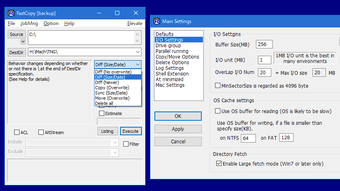
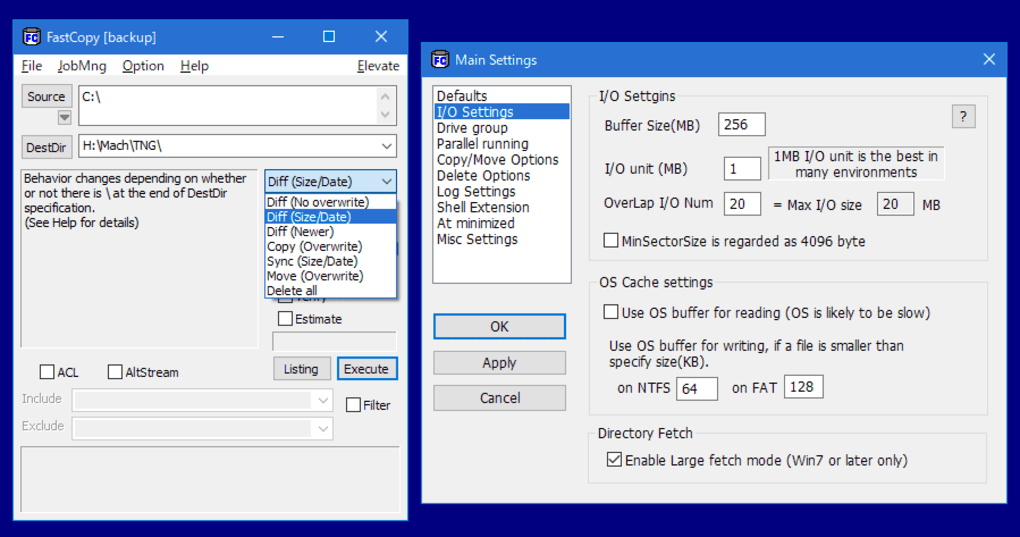
Despite its powerful capabilities, the user interface is intentionally minimalistic—some might say overly basic. The main window displays only essential options: source, destination, copy mode, and a start button. While this keeps the app lightweight, it can be confusing for beginners.
Advanced users, however, appreciate the depth of customization available behind the scenes. You can configure copy speed limits, enable preview mode to see what will be copied before execution, and set up inclusion/exclusion filters based on file type, size, or name patterns. The ability to define custom logging options—such as saving skipped files to a text file or automatically wiping source files after copying—adds significant value for automation and security-conscious users.
FastCopy also supports Unicode and long file names, ensuring compatibility with international file systems and modern storage devices. It works flawlessly with SSDs, HDDs, USB flash drives, and external hard drives, making it a versatile tool for any data transfer scenario. The portable version allows you to carry the software on a USB drive and run it from any Windows PC without leaving traces, which is ideal for IT support or temporary use. With such a flexible and customizable setup, FastCopy adapts to your workflow—whether you're a home user, a content creator, or a system administrator.
FastCopy Pro: Advanced Features for Power Users
While the standard version of FastCopy is completely free and fully functional, the FastCopy Pro upgrade unlocks a suite of advanced features tailored for professionals and advanced users. The Pro version is available as a one-time purchase or via annual subscription, offering long-term flexibility. One of the most valuable additions is the Perfect Verify feature, which performs a comprehensive checksum comparison after the copy is complete. This ensures that every byte of data has been transferred accurately, detecting even subtle corruption that might go unnoticed with basic copying tools.
Another key enhancement is the Silent Data Corruption Check. This feature actively monitors copied files for signs of silent corruption—data errors that don’t trigger immediate failures but can compromise file integrity over time. If any issues are detected, FastCopy Pro alerts the user immediately, allowing for corrective action before data loss occurs. This is especially critical for long-term backups, archival projects, or any situation where data reliability is paramount.
Pro users also gain access to multiple operating modes, such as “Smart Copy,” “Fast Copy,” and “Verify Only,” which allow the software to adapt its behavior based on file size, type, or destination. These modes help optimize performance and resource usage depending on the task. Additionally, the Pro version includes enhanced logging, priority settings for background operations, and support for scripting and batch processing—ideal for automated workflows. For users who need enterprise-grade reliability, FastCopy Pro is a worthwhile investment that transforms a great tool into a powerful data management solution.
Pros & Cons Summary
- Pros:
- Up to 2x faster copying speeds than Windows default
- Low system resource usage during transfers
- Automatic error handling and file skipping
- Supports Unicode, long file names, and advanced metadata
- Portable version available for USB use
- Free to use with optional Pro upgrade
- Excellent for large-scale file transfers and backups
- Cons:
- Basic, non-intuitive interface for beginners
- Documentation is technical and hard to follow
- Shell extension not enabled by default
- Some advanced settings require technical knowledge
- Pro version is not free, though features are valuable
Frequently Asked Questions (FAQ)
Is FastCopy safe to use on my Windows PC?
Yes, FastCopy is a secure and reliable tool developed by FastCopy Lab. It does not contain malware or ads. The software is open-source and widely trusted by users and IT professionals. Always download it from the official website to ensure authenticity.
Can I use FastCopy on Mac or Linux?
No, FastCopy is currently only available for Windows. There is no official version for Mac, Linux, Android, or iOS. However, similar tools like TeraCopy and FreeFileSync offer cross-platform support.
Does FastCopy work with external hard drives and USB sticks?
Yes, FastCopy works with all types of storage devices, including SSDs, HDDs, USB flash drives, and external hard drives. It’s especially effective for transferring large files between these devices due to its optimized performance.
How do I enable the right-click context menu?
During installation, make sure to check the option “Install Shell Extension” to enable the FastCopy context menu in File Explorer. If missed, you can re-run the installer and select this option.
Is the Pro version worth the cost?
Yes, if you handle large backups, sensitive data, or require automated workflows. Features like Perfect Verify, silent corruption checks, and multiple operating modes make it a powerful tool for professionals and advanced users.
Final Verdict & Call to Action
FastCopy is a powerful, free, and secure file copying tool that delivers exceptional performance on Windows systems. With its speed, reliability, and advanced error-handling features, it’s a top choice for anyone tired of slow or failed file transfers. While the interface may be intimidating for beginners, the depth of customization and performance gains make it a standout utility. The Pro version offers valuable upgrades for professionals, but the free version remains highly capable.
If you're looking for a faster, more stable alternative to Windows’ default copy function, download FastCopy today and experience the difference in file transfer speed and reliability. Whether you're backing up data, transferring media, or managing large projects, FastCopy is a tool you can trust.
Review Rating: 4.8/5 – Excellent for speed, stability, and performance.
Reviewed by: Professional Software Reviewer
Date:







